1. Export an approved model revision
Export IFC from Tekla Structures or another compatible authoring tool. Check that assemblies and their marks are included. Choose an approved revision so tags are not prepared from superseded model data.
2. Import and review the parts list
Load the file into Fabbim and review the information actually imported. Compare sample assemblies with the design office list: marks, component parts and quantities. IFC does not automatically correct missing information in the source model.
3. Select marks and quantities
Choose the items for the phase or batch to be prepared. One mark may represent multiple occurrences: check the number of tags and the intended level of tracking. Review the selection in the 3D view before submitting the request.
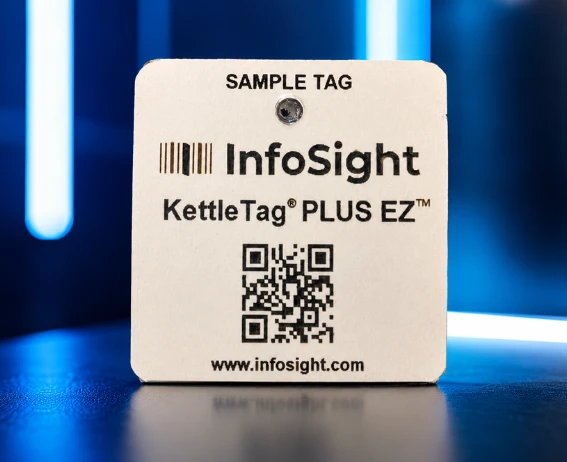
Hot dip galvanizing identification tags →
4. Prepare the order and project association
Confirm the marking data and tag requirements for the planned treatment. Submit the selection for a quotation; tags are prepared with their link to the Fabbim project. Reconcile delivered marks with the approved selection before attaching them.
5. Handle model revisions after preparation
Compare added, removed or renamed items before making a new selection. Do not reuse a tag for another assembly simply because its mark looks similar. Clarify changes with Fabbim before confirming another request.
Steel2Tag: prepare your Tekla export
Steel2Tag is available free on Tekla Warehouse. Its IFC export does not require a Fabbim account. Check the marks and assembly structure before uploading the file to the ordering workflow.