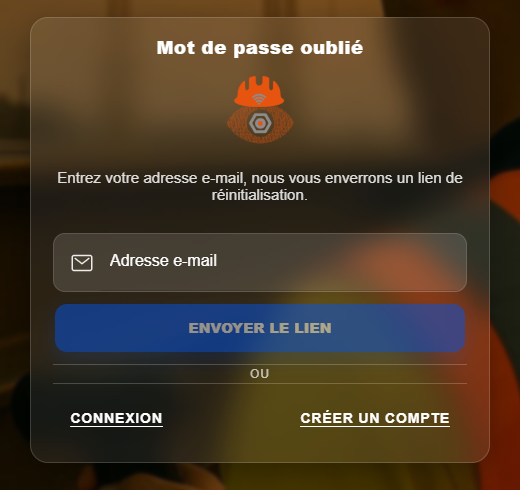
To use Fabbim, access the platform from the official website. If you do not have an account yet, start by registering.
1. Open the Fabbim website
Open your browser and go to app.fabbim.com.
At the top right of the home page, you will find the buttons Create an account and Sign in.
2. Create a user account
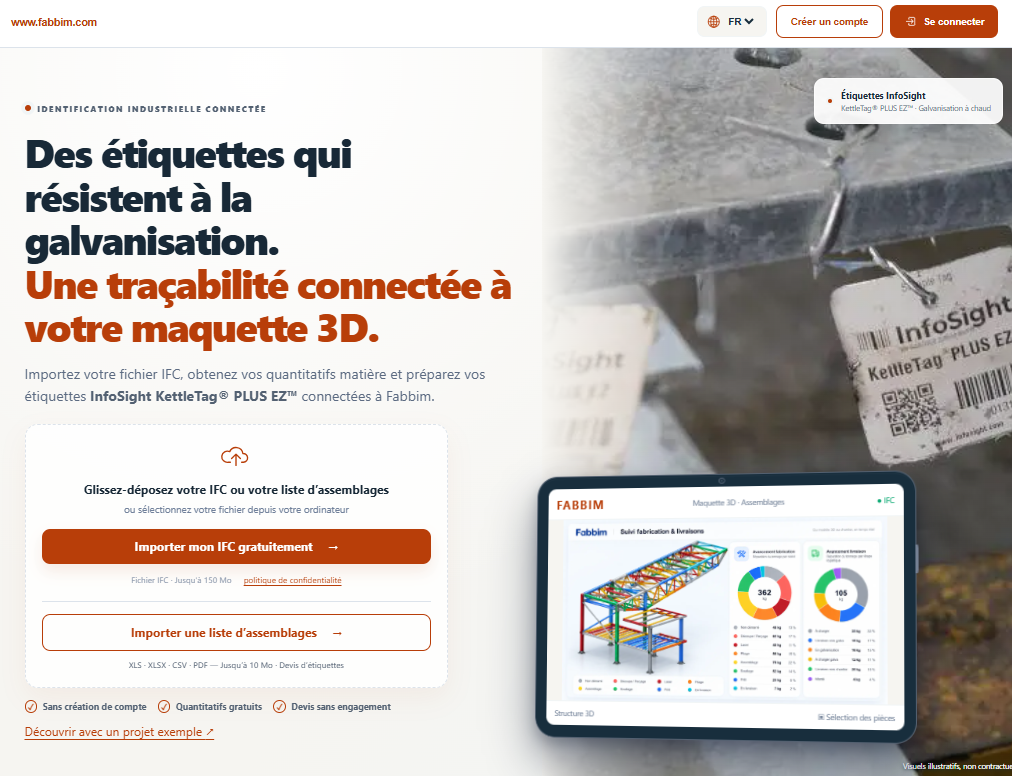
Click Create an account to open the Fabbim registration form.
Fill in the fields shown on screen:
- Name — your username.
- Company name — the name of your company.
- Email address — the address you use to sign in.
- Password — your account password.
- Confirm password — enter it a second time.
Once you have entered your details, click CREATE AN ACCOUNT.
3. Activate your account by email
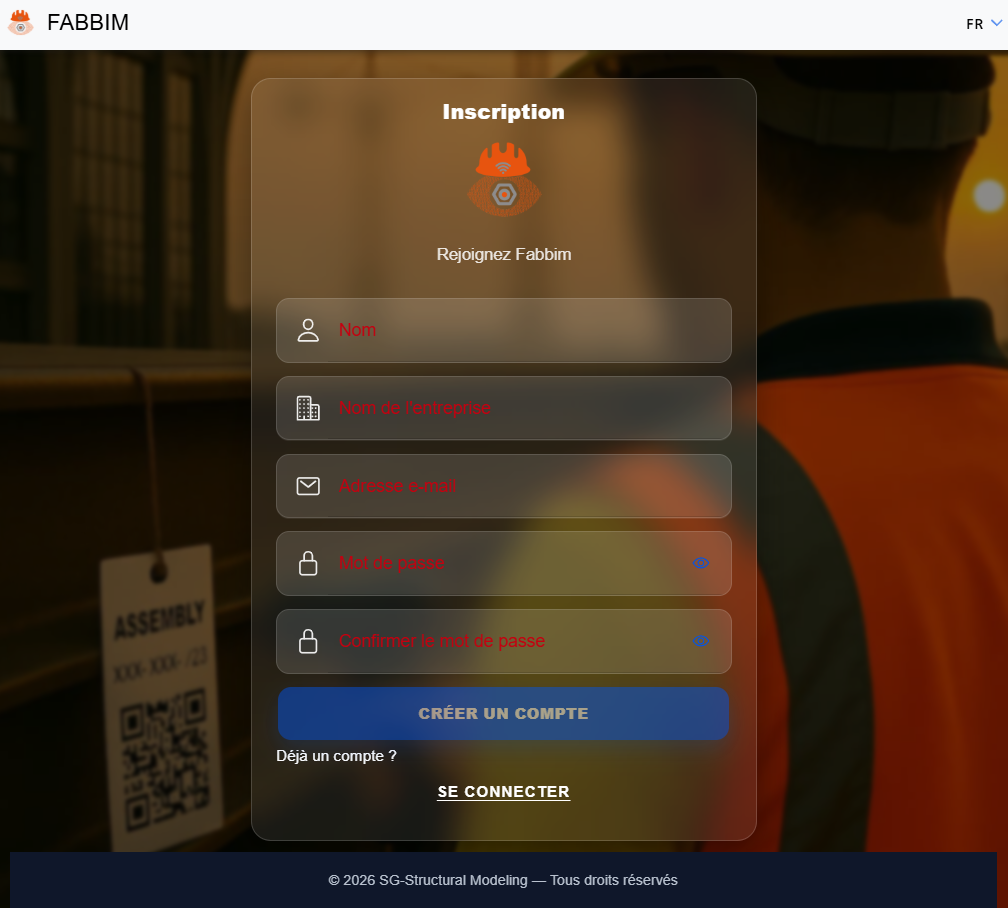
After registration, Fabbim sends you an email with the subject “Activate your account”, from no-reply@fabbim.com.
- Open your inbox.
- Find the email sent by Fabbim.
- Click the personal activation link in the message.
- Once your account is activated, you can sign in to the platform.
4. Sign in to Fabbim
Once your account is activated, go to app.fabbim.com or click Sign in on the Fabbim website.
- Enter your email address.
- Enter your password.
- You can select Remember me to stay signed in.
- Click the button SIGN IN.
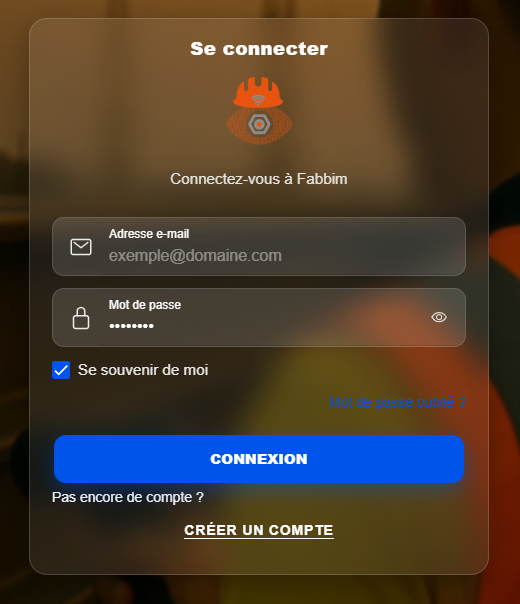
If you have forgotten your password, use the link Forgot password? to start the recovery process.
5. Reset a forgotten password
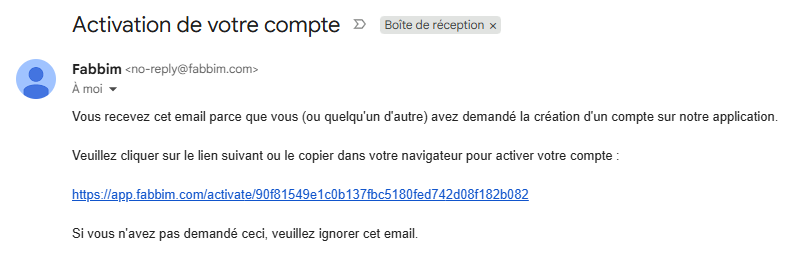
If you cannot remember your password, click the link Forgot password? on the sign-in screen.
- Open the Fabbim sign-in screen.
- Click Forgot password?.
- Enter your email address.
- Click SEND LINK.
- Check your email to continue resetting your password.